

Quick answer: Claude Code turns plain-English instructions into working software: it reads your codebase, plans, edits files, runs tests, and asks your permission before changing anything. The #1 beginner habit is planning first, and it’s not free — you’ll need a Claude Pro/Max subscription or Anthropic API access. Commit to git before every session so you can always roll back.
So What Is Claude Code, Really?
Think of it this way. You open a terminal inside your project folder, type claude, and describe what you want in plain English. Claude reads your codebase, figures out a plan, edits files, runs commands and tests, and asks your permission before changing anything.
That last part is what makes it different from autocomplete. Autocomplete suggests your next line; Claude Code works through the whole task. Tell it “write tests for the auth module, run them, and fix any failures” and it will move across multiple files, checking its own work as it goes.
We’ve been using it daily for real work, and it has lowered the barrier to building software more than anything we’ve seen in years. This guide gets you from zero to your first working app.
The path from zero to first app, at a glance:
| Step | What to do | Detail |
|---|---|---|
| 1. Check prerequisites | Node.js 18+, a Claude account, basic terminal comfort | Pro ~$20/month or pay-as-you-go API |
| 2. Install | curl -fsSL https://claude.ai/install.sh \| bash |
About 30 seconds; verify with claude --version |
| 3. Authenticate | Browser login on first launch | Subscription for simplicity, API key for cost control |
| 4. Start small | Open a real project, ask it to explain the codebase | Build trust before handing it big tasks |
| 5. Plan first | /plan or Shift+Tab before any code changes |
Five minutes of review saves an hour of undoing |
| 6. Build | Describe the app in a paragraph | Use CLAUDE.md so it remembers your conventions |
Prices verified: October 2026.
What do you need before starting Claude Code?
Three things:
- Node.js 18 or higher. Run
node --versionin your terminal to check. If you don’t have it, grab it from nodejs.org first. (The native installer below doesn’t need Node at all; only the npm route does.) - A Claude account. A Pro subscription (about $20/month, sometimes less billed annually) or pay-as-you-go API access. On a subscription, Claude Code draws from your plan’s usage allowance with no per-token billing to think about.
- Basic terminal comfort. Open a terminal and
cdinto a folder. If you can do that, you’re ready.
No Docker. No cloud setup. And no API keys to juggle manually, though key-based auth is there if you want it.
Step 1: Install Claude Code
On macOS or Linux, run:
curl -fsSL https://claude.ai/install.sh | bash
On Windows (PowerShell):
irm https://claude.ai/install.ps1 | iex
Or if you prefer npm:
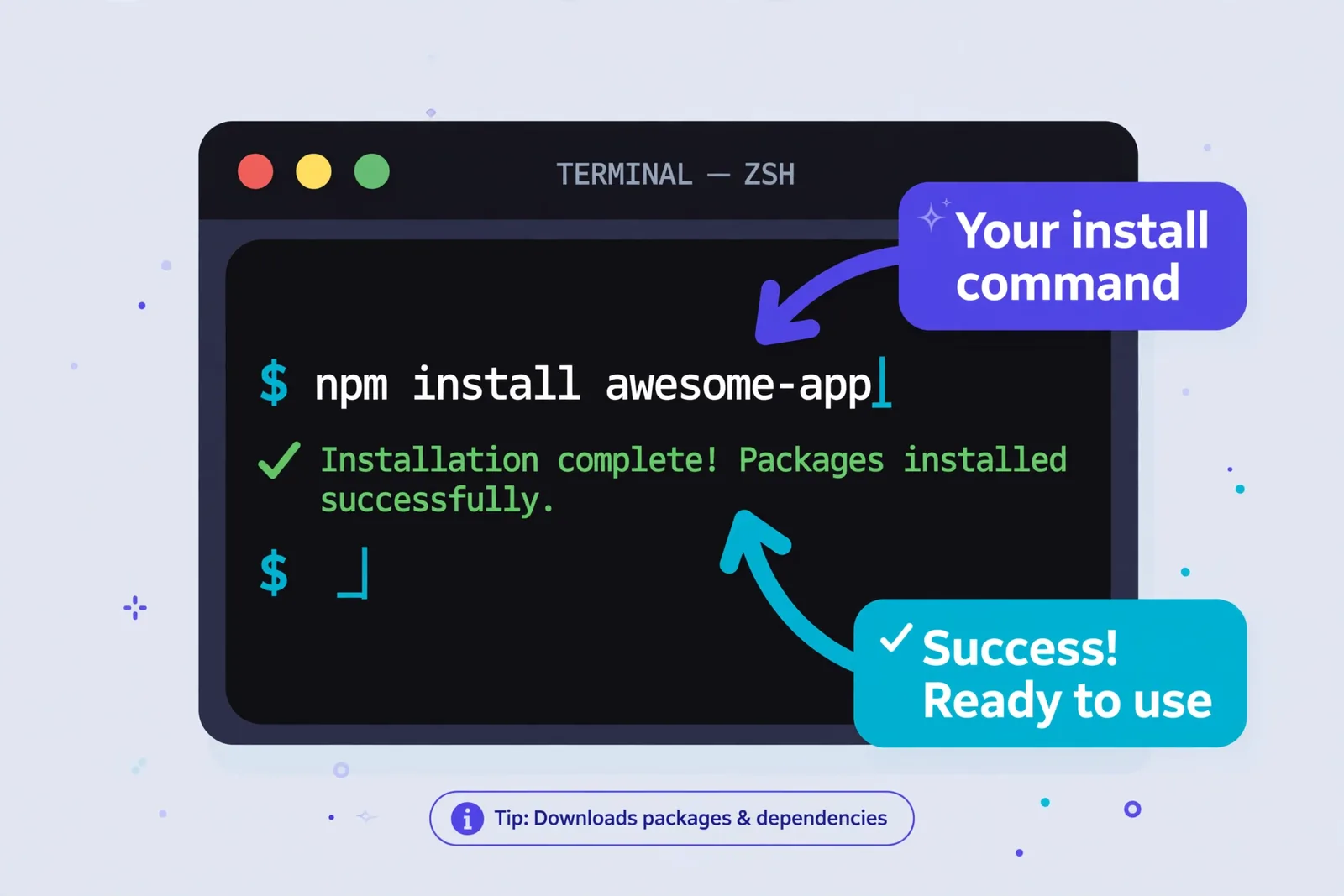
npm install -g @anthropic-ai/claude-code
It takes about 30 seconds. Verify it worked:
claude --version
See a version number and you’re installed. If you get “command not found,” open a fresh terminal window (some terminals cache the old PATH) or check that npm’s global bin folder is in your PATH.
Prefer a GUI? The VS Code extension (which also installs into Cursor) gives you inline diffs and plan review if you’d rather not live in the terminal, and there’s a JetBrains plugin too.
Step 2: Authenticate
On first launch, Claude Code opens a browser window. Log in with your Anthropic account, and you’re done. The session saves locally, so this is a one-time thing.
Two auth paths, pick your style:
- Subscription (Pro/Max): Best for individuals with predictable daily use. Your subscription covers it within its usage limits.
- API key: Best if you want exact cost control or you’re wiring it into scripts. Set
ANTHROPIC_API_KEYin your shell config. A typical feature costs a couple of dollars in tokens.
Most beginners should just use the subscription. Simpler.
Step 3: Start Your First Session
Navigate to a real project folder. A real one matters, because Claude Code shines brightest on real codebases.
cd ~/projects/my-app
claude
Claude opens an interactive session and reads your folder structure. It knows what you’re working with before you type a word.
Now start small. Seriously. Your first task should be tiny and in a project you know well, so you can check its work and build trust. Try:
What does this codebase do? Explain the main components.
Then give it something small and testable:
Add input validation to the login form and show an error message if the email is invalid.
Watch what happens. Claude reads the relevant files, writes the code, and shows you the changes. The core loop is: read, think, edit, show you, repeat.
What’s the #1 beginner habit for Claude Code?
Plan first. Before giving Claude any task that changes code, type /plan with your goal or press Shift+Tab to cycle into Plan mode, then review the proposal it shows you before approving anything. This single habit prevents most beginner disasters and is the difference between directing the agent and cleaning up after it.
Here’s the habit most beginners skip. Before you give Claude any task that changes code, make it plan first:
/plan Refactor the user service to use async/await instead of callbacks
Or press Shift+Tab to cycle into Plan mode. Claude shows you exactly what it intends to do: which files it’ll open, what changes it’ll make, in what order. You read the plan, approve or adjust it, then it executes.
Why does this matter? Because an agent that misunderstands your goal will build the wrong thing very fast. Five minutes reviewing a plan saves an hour of undoing. Make it a reflex.
Step 4: Build Something Real
Ready for the fun part? Let’s build an actual app with one prompt. Create a fresh folder:
mkdir expense-tracker
cd expense-tracker
claude
Then paste something like:
Build an expense tracker app with Next.js and Tailwind CSS. It should have:
- An expense form with categories (food, transport, entertainment, bills, other)
- A list of expenses sorted by date
- A summary section showing totals per category
- A JSON file as the database
- Dark theme, fully responsive design
Hit enter and watch it work. It scaffolds the project, sets up Tailwind, builds the form, the list, the summaries, the storage. When it asks permission to create files or run commands, you can enable auto-accept for a smoother flow once you trust it.
Beginners consistently tell us this is the moment it clicks. You described an app in a paragraph, and now it exists.
What is the CLAUDE.md file, and why should you use one?
Here’s what separates casual users from power users. Claude Code reads a file called CLAUDE.md at your project root automatically. Put your preferences there and you stop repeating yourself every session:
# Project: Expense Tracker

## Stack
Next.js 14, Tailwind CSS, JSON file storage

## Conventions
- Use TypeScript strict mode
- Functional components only, no class components
- All API routes return { data, error } shape

## Commands
- Dev: npm run dev
- Test: npm test
- Lint: npm run lint
Ten minutes writing this saves ten hours of correcting the same mistakes. Run /init in a project and Claude generates a starter CLAUDE.md you can refine. Do it for every project. Future you will be grateful.
Where can you run Claude Code?
One engine, several surfaces. Your settings, project memory, and connected tools follow you:
- Terminal: The full-featured home base.
cd your-project && claude. - VS Code extension: Inline diffs, @-mentions, plan review. (Also installs into Cursor.)
- JetBrains plugin: IntelliJ, PyCharm, WebStorm. Needs the CLI alongside.
- Desktop app: A visual way in when you’d rather not live in the terminal.
- Web: Cloud sessions with no local setup when you’re away from your machine.
Start in the terminal. It’s where the tool is most capable, and everything you learn transfers.

Is It Safe?
Fair question. Claude Code runs on your machine with your permissions, so treat it like a very capable assistant, not a sandbox. A few ground rules:
- Use git. Every change Claude makes should be in a repo you can roll back. Non-negotiable.
- Review before approving. By default it asks permission before editing files or running commands. Keep it that way until you’re experienced.
- Never paste secrets into prompts. No passwords, no API keys in chat.
- Be skeptical of instructions inside downloaded files or web pages. Prompt injection is real; Claude Code can read files that contain malicious instructions.
Anthropic keeps tightening the safety story, but the responsibility is still yours. Trust it, then verify.
Should you use Claude Code or GitHub Copilot?
People ask us this constantly. They’re different tools:
- Copilot is autocomplete on steroids. It predicts your next lines inside your editor. Fast, cheap, always there.
- Claude Code is an agent. It takes a goal, plans, edits multiple files, runs tests, iterates. Slower per action, but it completes whole tasks.
Most developers we know use both: Copilot for line-by-line speed, Claude Code for “go implement this feature.” They don’t really compete.
FAQ
Is Claude Code free?
No. You need a Claude Pro/Max subscription or Anthropic API access. There’s no free tier for the agentic coding features.
Do I need to know how to code to use Claude Code?
You can build real things with minimal coding knowledge, and many beginners use it to learn while building. But you’ll get dramatically better results if you can read code well enough to review what it produces.
Which model does Claude Code use?
It defaults to a Sonnet-class model, and you can switch models with /model (Opus is the pick for the heaviest tasks). Note that Anthropic has rotated the exact default a few times through 2026, so check /model in your session rather than trusting any article, this one included.
Can Claude Code work on my existing project?
Yes, and that’s where it’s strongest. Point it at any codebase, ask it to explain the architecture first, then give it small tasks and grow from there.
What if Claude breaks my code?
That’s what git is for. Commit before each session, review diffs before accepting, and you can always roll back. Start with small tasks in a project you understand.
Mac, Windows, or Linux?
All three. macOS 13+ works fine on modest hardware; no high-end machine required.
Keep reading:
– Claude vs ChatGPT for Coding: Which Writes Better Code?
– Gemini vs ChatGPT for Students: Which Studies Better?
– 10 Best Free AI Tools for Students in 2026