

Quick answer: OpusClip is the best hands-off clipper for most creators — $15 a month for 150 source minutes, no watermark, with posting built in. Vizard is the better value past about 5 hours of source video a month, because its $29 Creator plan includes 600 minutes where OpusClip Pro includes 300. Descript is the pick if you want to edit the full episode first and clip second. Klap bills per clip instead of per minute, which suits short, dense source videos. And if you have no long footage at all, you do not need a clipper — you need a video generator.
A clip maker has a single job: it takes a long video you already have — a podcast, a webinar, a stream, an interview — and turns it into multiple captioned vertical clips for Shorts, Reels, and TikTok. That is a different job from editing footage (CapCut, Kapwing) and a different job from generating a video from a prompt. Creators who mix those jobs up buy the wrong tool.
This guide compares six tools on the numbers that decide your bill: what each one charges per source minute, what its free tier actually lets you publish, how much control you get over the edit, and how good its captions are — because captions are what make a clip watchable with the sound off.
The 6 Tools at a Glance
| Tool | Best for | Billing meter | Entry paid price |
|---|---|---|---|
| OpusClip | Hands-off clipping + posting | Per source minute | $15/mo, 150 min |
| Vizard | High-volume clipping | Per source minute | $29/mo, 600 min |
| Klap | Fast one-click cutdowns | Per clip generated | $29/mo, ~100 clips |
| Descript | Edit first, clip second | Media minutes + AI credits | $24/mo monthly; $16/mo annual |
| Munch | SEO + trend-driven clips | Upload minutes | ~$49/mo, 200 upload min |
| CapCut | Free polishing after clipping | Free / subscription | Free; Pro ~$14.99/mo |
Prices were cross-checked across several sources in October 2026; annual billing lowers most of them (OpusClip Pro $14.50/mo, Vizard Creator $14.50/mo, Descript Hobbyist $16/mo, Klap ~$14/mo). Confirm the current price on the vendor’s site before paying.

Cost at Volume: The Table That Decides Your Bill
Clip makers bill in different units, so the sticker price tells you almost nothing. OpusClip and Vizard charge 1 credit per minute of source video uploaded — the number of clips that come out does not change the cost. Klap charges per clip generated. Descript’s media minutes cover editing, and its clip tool draws on a separate AI credit allowance it does not price per clip. Munch charges by upload minutes.
Here is what each tool costs at four monthly source volumes, using list prices read in October 2026:
| Source video / month | OpusClip | Vizard | Klap | Descript |
|---|---|---|---|---|
| 60 minutes | $0 (Free, watermark, 3-day export) | $0 (Free, 720p) | $29 (trial only) | $0 (Free, 60 media min) |
| 150 minutes | $15 (Starter) | $29 (Creator) | $29 (Basic) | $24 (Hobbyist) |
| 300 minutes | $29 (Pro) | $29 (Creator) | From $29, by clip count | $24 (Hobbyist) |
| 600 minutes | $58 (Pro, 2 packs) | $29 (Creator) | From $29, by clip count | $24 (Hobbyist) |
Two conclusions fall out of this table. First, OpusClip Starter is the smallest no-watermark monthly bill up to 150 minutes — it covers four or five 30-minute episodes. Second, past about 5 hours of source video a month, Vizard is the cheaper per-minute clipper: the same $29 buys 600 minutes where OpusClip Pro buys 300. On annual billing the two cost the same $14.50 a month, and Vizard still includes twice the minutes.
Klap’s per-clip billing flips the logic again: if your source video is dense — a 20-minute interview with ten quotable moments — per-clip can be cheap. If your source is a three-hour stream with long quiet stretches, per-minute billing punishes you for footage the AI will mostly discard. Before you pick, estimate your real monthly source minutes, not your clip count.
The Virality Score Is a Guide, Not a Verdict
OpusClip’s signature feature is the Virality Score: a 0–99 rating on each candidate clip. It is useful as a first sort. It is not a verdict on what will perform.
The score rewards what the model recognises as engaging — energy, pace, clear hooks, emotional peaks. It tends to favour loud moments over ones that make sense out of context. A clip that scores highly but needs the previous two minutes of conversation to be understood will confuse a cold viewer, and confused viewers swipe away. A quieter clip with a self-contained point often outperforms it.
Treat the score as a triage step: sort by score, then watch every clip you plan to publish and ask one question — does this make sense to someone who has never seen the original? If the answer is no, cut it or add the missing context in the caption. No score replaces that check.
The same scepticism applies to every tool’s “AI picks the best moments” claim. What the AI picks is a starting shortlist. Your keeper rate — clips worth publishing divided by clips generated — is the number that matters, and no vendor publishes it. Measure it yourself with the test at the end of this article.
Captions: A Decision Factor, Not a Bullet Point
Captions decide whether a clip gets watched. Most Shorts and Reels are first seen with the sound off, and a clip with unreadable captions loses the viewer in the first second. Compare captions on four axes:
- Styling. Animated captions with highlighted keywords and emoji (OpusClip, Submagic) hold attention better than plain subtitles. Check whether styles are editable or locked to a template.
- Editability. The AI will misspell names, figures, and specialised terms. Every tool here lets you edit captions — check how painful the editing is. A clip whose captions you cannot fix quickly is a clip you will not publish.
- Languages. OpusClip captions in 20+ languages. If your audience is multilingual, check caption languages before you buy, not after.
- Burned-in vs SRT. Burned-in captions are part of the video file and always show. SRT sidecar files let viewers toggle captions. For Shorts and Reels, burned-in is the standard; for repurposing the same clip to other platforms, an SRT export is useful.
If captions are the product — you want caption-heavy polish on clips you already cut — Submagic (from about $19 a month, $12 a month billed annually) is a caption specialist worth adding to a shortlist. It is not a clip finder, so it pairs with a clipper rather than replacing one.
The 6 Tools in Detail
1. OpusClip — Best Hands-Off Clipper for Most Creators
OpusClip is built for a hands-off workflow: paste a link, get clips. It picks the moments it rates most engaging, reframes them to 9:16, adds animated captions in 20+ languages, and gives each clip a Virality Score. Paid plans add an editor, filler and silence removal, AI B-roll, and direct posting to Shorts, TikTok, and Instagram Reels.

The free plan gives you 60 credits a month — about an hour of source video — with watermarked captions, no editing, and a 3-day export window. It is a demo, not a workflow: anything you do not export within 3 days is gone. Starter at $15 a month (monthly billing only) gives 150 credits with no watermark. Pro at $29 a month, or $14.50 a month billed annually, gives 300 credits (3,600 a year on annual billing), a 2-seat workspace, a scheduler, AI B-roll, and XML export to Premiere Pro and DaVinci Resolve.
OpusClip fits creators who want a Shorts pipeline with minimal touching: podcasters, streamers, and marketers posting daily from long footage.
2. Vizard — Best Value Past 5 Hours a Month
Vizard does the same core job — automatic clipping with transcript and timeline fixes — with a different value curve. Creator costs $29 a month, or $14.50 a month billed annually, and includes 600 minutes of source video: twice OpusClip Pro’s allowance at the same price. Its free plan exports at 720p, which makes it a test drive rather than a publishing tool.
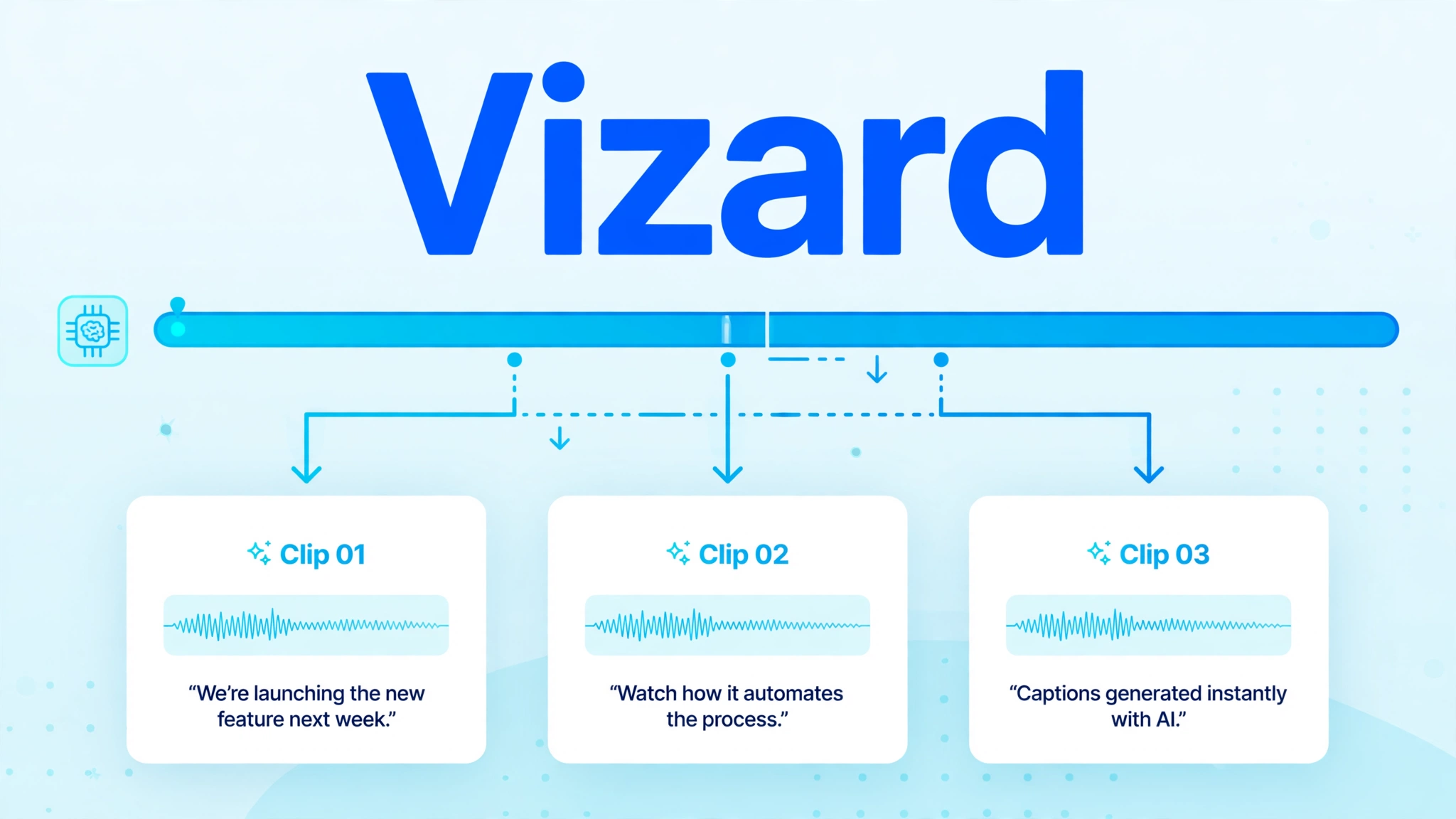
Vizard’s editor is its edge for creators who want the AI to pick, then fix a few cuts. The transcript-and-timeline editor makes it easy to trim a clip’s start and end, correct a caption, or reframe a shot without leaving the tool. If you like to touch every clip before it goes out, Vizard’s editing experience is the more comfortable of the two.
Pick Vizard if you process more than about 5 hours of long video a month, or if you want timeline-level control over every clip.
3. Klap — Best for Fast One-Click Cutdowns
Klap is the simplest tool here: upload, get clips, publish. It bills per clip generated rather than per source minute, with Basic at $29 a month (about $14 a month billed annually) for roughly 100 clips. It offers 4K export and AI dubbing, which the other clippers here do not bundle at the entry tier.

Per-clip billing suits creators whose source videos are dense with quotable moments — a punchy 20-minute interview, a panel with rapid exchanges. It punishes long, sparse sources: a three-hour stream that yields eight clips costs the same as a 20-minute interview that yields eight clips, even though the stream took far longer to process. Check whether Klap’s current offer includes a free plan or a single trial video — sources disagree — before you rely on it for testing.
4. Descript — Best if You Edit the Episode First
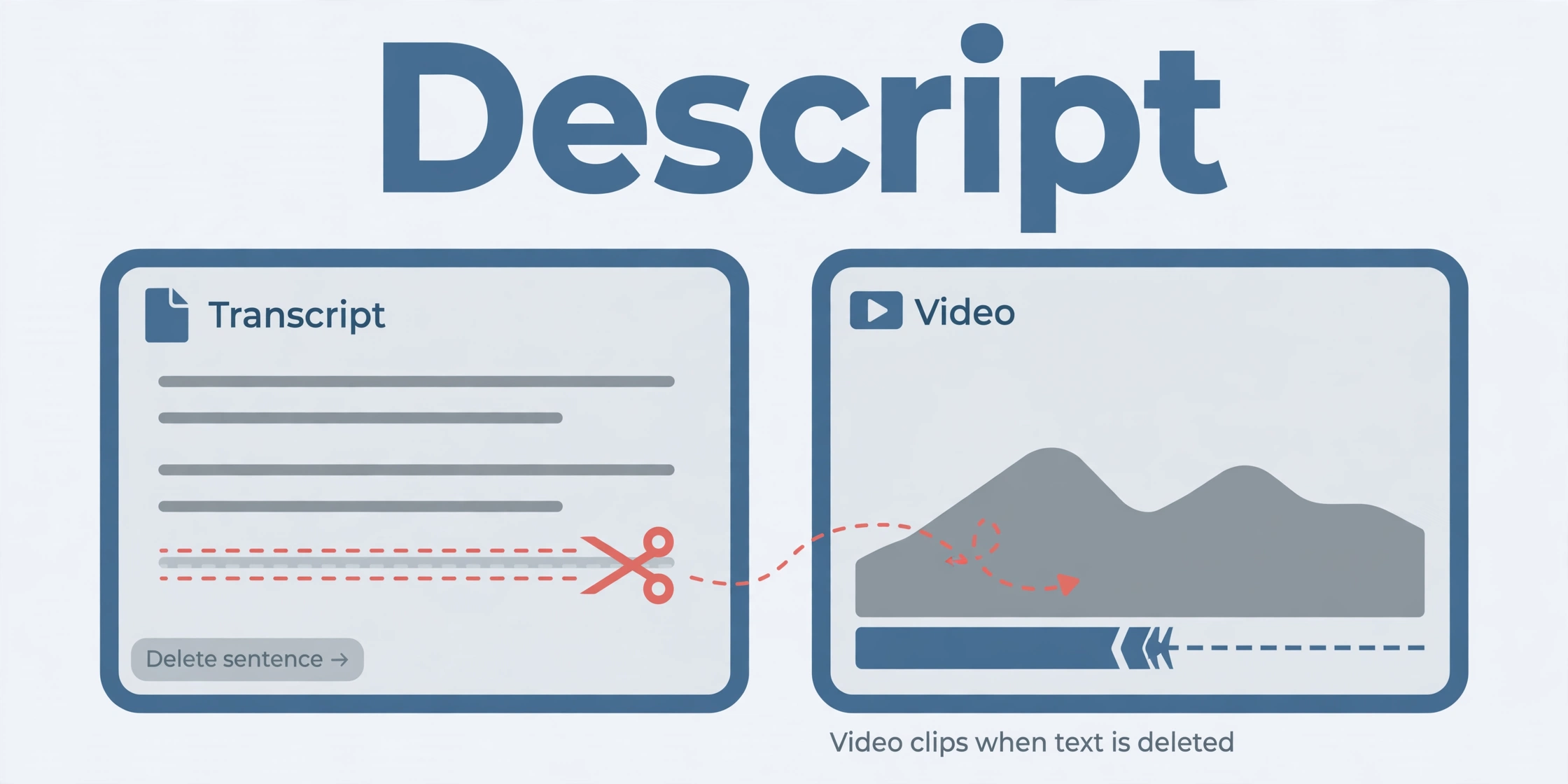
Descript is a full editor that happens to clip. You edit video by editing its transcript: delete a phrase from the text and it disappears from the video. You can clean up audio, remove filler words in bulk, and fix a mispronounced word with a cloned voice. Its clip features then cut vertical clips from the edited episode. If the narration itself needs generating rather than editing, that is a separate job — see our roundup of AI text-to-speech tools.
The free plan gives 60 media minutes a month at 720p. Hobbyist costs $24 a month billed monthly or $16 a month billed annually, with 600 media minutes. The clip tool draws on a separate AI credit allowance that Descript does not price per clip, so the cost of heavy clipping is harder to predict than on OpusClip or Vizard.
Descript fits creators who already edit their show in Descript or want one tool for the whole pipeline. If you only need clips from finished footage, a dedicated clipper is cheaper and faster. Our full review covers Descript’s editing depth: descript-review.
5. Munch — Best for SEO and Trend-Driven Clipping
Munch aims at a different goal: clips optimised for search and trends, with SEO metadata, trend analysis, and platform-specific suggestions. Pro costs about $49 a month for 200 upload minutes, which makes it the most expensive tool here per minute.

Munch fits marketers and agencies who care about which clip to publish and how to title it as much as how to cut it. For a solo creator who already knows what their audience wants, the premium over OpusClip or Vizard is hard to justify.
6. CapCut — Best Free Polisher (Not a Clipper)
CapCut is not a clip finder — it will not watch your long video and pick moments. It is the best free editor for polishing clips a clipper found: trimming, adding text, adjusting pacing, and exporting. The free tier covers most of that; Pro costs around $14.99 a month.
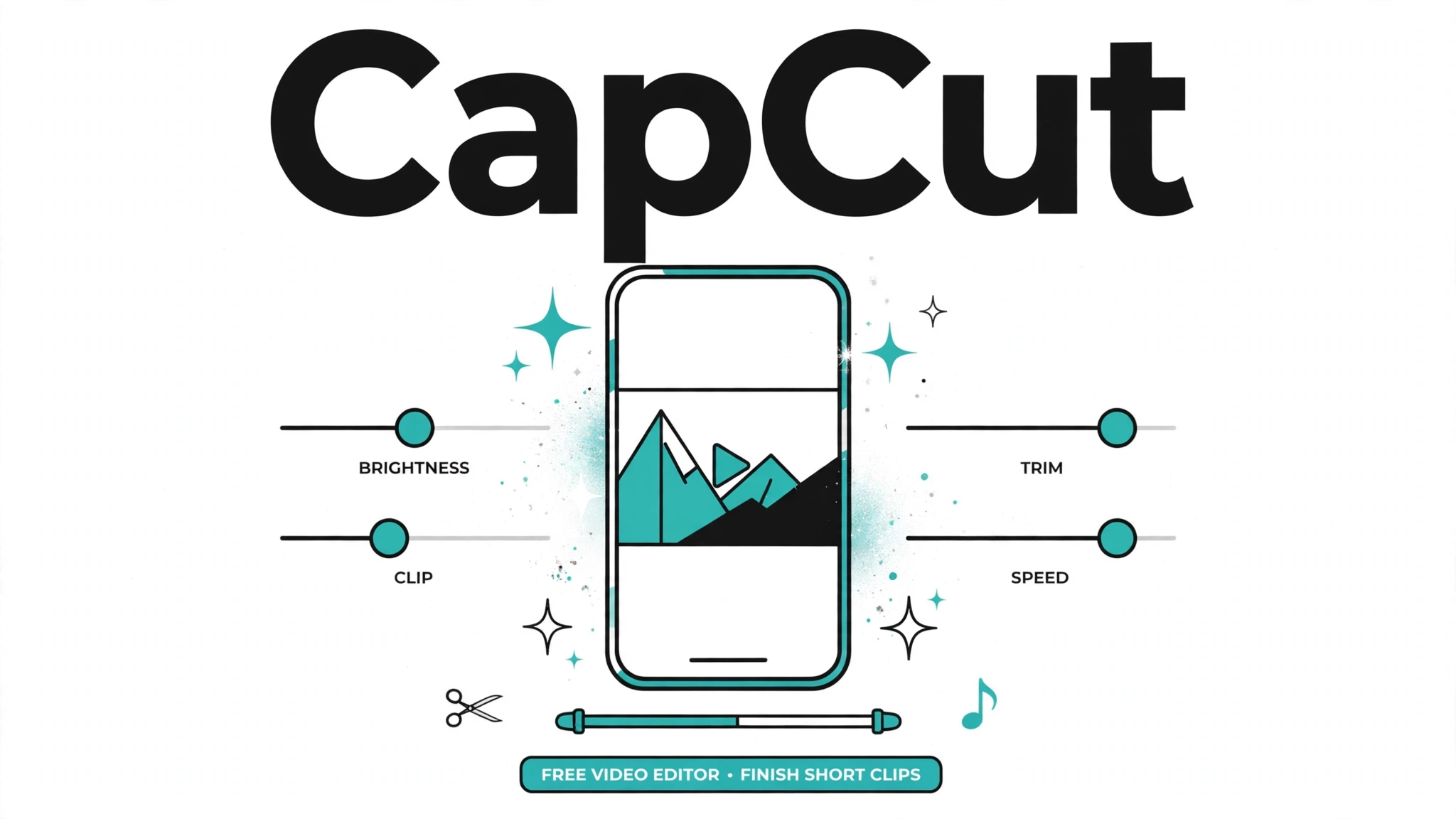
The workflow that works: clipper finds, CapCut polishes. Many creators pair OpusClip or Vizard with CapCut for final tweaks rather than paying for a second clipper. If your budget is zero, CapCut’s auto-cutting can produce basic shorts from long footage, but it is not a substitute for an AI clip finder.
Clipping vs Creating: Buy the Right Tool
If you are starting from zero — no long footage, no recorded show — a clipper cannot help you. You need a video generator: a tool that creates a video from a prompt, a script, or images. That is a different product with different pricing, covered in our generator guides: best-ai-video-generators and 6-best-free-ai-video-generators.
The rule is simple: footage in, clips out — buy a clipper. Nothing in, video out — buy a generator. Creators who genuinely need both usually need them in that order: generate the long video first, then clip it.
A Note on Originality
YouTube’s Partner Program rules reward original content. A clip that is just a sliced segment of someone else’s video, with nothing added, is a weaker monetisation bet than a clip with your own commentary, framing, or editing. Use the clipper to find moments, then add something: a reaction, a context-setting intro, a caption that reframes the clip. The creators who build durable Shorts channels treat the clipper as a finder, not a publisher.
For the broader Shorts strategy — channel setup, posting cadence, what to do beyond clipping — see faceless-youtube-channel-ai.
The Same-Episode Test (Run It Yourself Before You Pay)
Do not take any roundup’s word for clip quality. Run this protocol on your own shortlist instead. It takes about an hour.
Take one real episode — ideally a 30-minute one with a mix of strong and quiet moments — and run it through two or three free plans. Then compare three things: the keeper rate (how many clips would you actually publish, out of how many generated?), the caption accuracy (names, figures, and specialised terms), and the edit effort (how many minutes of fixing per clip before it is publishable?). Keep the tool with the highest keeper rate and the lowest fix-up time. A tool that generates 25 clips you will not publish is worse than one that generates 8 you will.
Frequently Asked Questions
What is the best AI clip maker for Shorts?
OpusClip for hands-off clipping up to about 150 source minutes a month; Vizard past about 5 hours a month, because its $29 plan includes twice the minutes. Descript if you want to edit the full episode first and clip second.
Is OpusClip free?
It has a free plan at $0 with 60 credits a month, but exports are watermarked, uneditable, and must be exported within 3 days. For publishing, budget $15 a month for Starter (150 credits, no watermark) or $29 for Pro.
How do OpusClip credits work?
One credit equals one minute of source video processed. A 30-minute podcast costs 30 credits whether it yields 5 clips or 25. Monthly credits expire — check the current rollover terms on the pricing page, since they have changed over time.
What is the best free AI clip maker?
CapCut, if you are willing to cut manually — its free editor is genuinely usable. For AI clip-finding, OpusClip’s and Vizard’s free plans are trials: watermarked or resolution-capped, with short export windows. Expect to pay $15–29 a month for a publishing workflow.
Do I need a clip maker or a video editor?
A clip maker if you already have long footage and want many short clips from it. A video editor if you need to shape the footage itself — cutting, rearranging, adding graphics. Most creators end up using both: a clipper to find moments, an editor to polish them.
The Bottom Line
Start from your monthly source minutes. Under 150, OpusClip Starter at $15 is the smallest no-watermark bill. Over 300, Vizard Creator at $29 buys twice the minutes. Dense source with many quotable moments, Klap’s per-clip billing. Edit-first workflow, Descript. Zero budget, CapCut for manual cutting. Whatever you pick, run the same-episode test, ignore the virality score when a clip makes no sense out of context, and fix every caption before you publish.
Prices verified: October 2026. Credit and minute allowances change often — confirm the current figures on the vendor’s pricing page before paying.
Keep reading
- Descript Review (2026): Edit Video by Editing Text? We Tested It
- The 10 Best AI Video Generators in 2026 (What Sora’s Shutdown Changed)
- 6 Best Free AI Video Generators (Text to Video) in 2026
- How to Start a Faceless YouTube Channel with AI (2026 Blueprint)
- Runway AI Review 2026: Is Gen-4 Worth It for Creators?